Welcome to Tubient
Tubient is an advanced visual analytics platform for YouTube creators, providing high-fidelity pipelines and AI-driven growth insights.
💡 Getting Help
You can ask the AI assistant for help at any time. Depending on your query, it will provide general guidance or specific technical details:
General Help
"How do I use this system?"
Gives a canvas-aware overview of what Tubient can do and suggests a sensible next step based on what you've already built.
Node & Feature Help
"Tell me about Filter nodes"
Explains a node, metric, or feature in plain English — tailored to your current canvas rather than a generic spec dump.
Intelligent Analysis
"Why did my views drop?"
Performs deep-dives into performance shifts, retention, and engagement.
Report an Issue & Support
Bug Reports & Direct Assistance
Premium users can open a support ticket with an auto-captured screenshot of their dashboard using the icon in the sidebar.
The Analytics Pipeline
Unlike traditional static dashboards, Tubient uses a pipeline architecture. You define your analysis by connecting functional nodes on a visual canvas. This approach gives you total flexibility to filter, combine, and visualize metrics exactly how you need them.
Whether you're tracking daily subscriber surges or deep-diving into the search keywords of your latest viral hit, Tubient's nodes provide the building blocks for professional-grade channel analysis.
Key Capabilities
AI Orchestration
Describe what you want to see in plain English, and our Gemini-powered assistant will build the pipeline for you.
High-Fidelity Sync
Direct integration with YouTube Data and Analytics APIs ensures you're always looking at high-fidelity performance metrics.
Visual Insights
Switch between temporal trends and categorical snapshots (Geography, Traffic Sources, Keywords) without losing your context.
The Dashboard
The Tubient dashboard is split into two primary interaction zones, designed to keep your data at the top and your logic at the bottom.
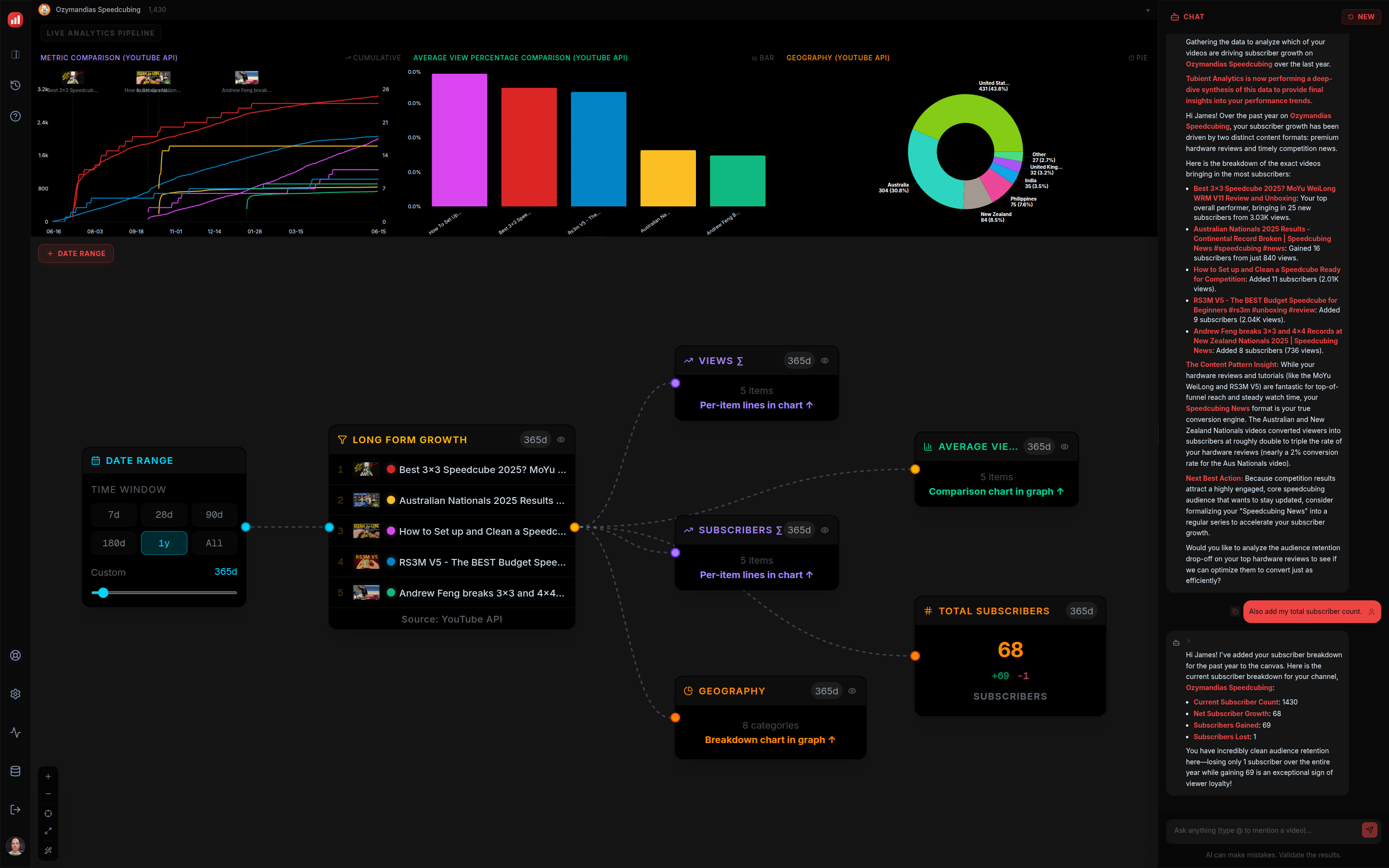
Active Viewing Area (Top)
The top 40% of the screen is dedicated to your Live Chart. All temporal metrics (data that changes over time) are plotted here as color-coded lines. When you add nodes that provide "snapshot" data (like geographic breakdowns), separate panels dynamically appear next to the main line chart.
- Temporal Chart: Multi-series lines for views, subscribers, watch time, shares, etc.
- Snapshot Panels: Categorical data shown as Bar or Pie charts. Each panel features an independent toggle to switch its visualization mode.
- Verified Channels Dropdown: Manage your connected YouTube channels from the account menu. It displays your verified channel thumbnail and custom name returned directly from YouTube's API to ensure clear identity validation.
Pipeline Canvas (Bottom)
The bottom area is a high-performance interactive canvas powered by our visual engine. This is where your logic lives. Nodes are connected from left to right, matching the flow of data processing.
Canvas Controls
- SelectionClick a node to select it, or shift+click and drag a box across the canvas to select multiple nodes.
- MovementClick and drag nodes to rearrange them. Pan the canvas by dragging empty space, and zoom using your mouse wheel.
- HistoryPress Ctrl+Z to undo actions, and Shift+Ctrl+Z to redo them.
- DeletionSelect one or more nodes and press Del to remove them from the pipeline.
Canvas Navigation
The floating tools in the bottom-left of the canvas provide essential navigation and layout controls:
- ZoomUse the and buttons to zoom in and out of your pipeline.
- CenterThe Center View button re-centers the canvas on your current nodes while preserving your zoom level.
- Fit ViewThe Fit View button instantly zooms and pans to ensure your entire pipeline is visible.
- Tidy UpThe Tidy Up button automatically rearranges all nodes into a clean, optimized vertical-first layout.
Keyboard Shortcuts
Typical Pipeline Flow
Smart Breakdowns
Tubient uses an intelligent detection system to manage complex data relationships. When you connect a Filter Node to one of the following:
- Temporal Mode: If the metric is a trend over time (e.g., Views, Subscribers), use a Temporal Node (Violet). It displays multi-series lines in the main chart. Toggle Daily/Cumulative in the chart header.
- Comparison Mode: If you want to rank and compare videos (e.g., Likes per video), use a Comparison Node (Emerald). It displays aggregate Bar or Pie charts.
- Numeric Mode: If you want to compute totals or averages across the filtered videos (e.g., Total Views, Average Duration), use a Numeric Node (Orange). It displays a direct numerical stat callout.
- Premium Mode: If you want advanced ratio distributions or statistical z-scores (e.g., Retention Curve, relative performance), use a Premium Node (Taupe). It renders deep-dive analytics directly in the canvas.
Interactive Tutorial
The Interactive Tutorial is a step-by-step guided experience that walks you through building your first analytics pipeline. Unlike the Onboarding Tour, which highlights static UI elements, the Tutorial actively submits sample prompts on your behalf and shows you the results appearing live on the canvas.
What the Tutorial Does
Each tutorial step presents a short explanation and a pre-written prompt. When you click Continue, the prompt is sent to the AI Assistant exactly as if you had typed it. You can watch nodes appear and connect in real time, giving you a concrete sense of how the pipeline system works.
- Safe to run on a live session — the tutorial adds nodes but does not delete or overwrite your existing work.
- Skippable at any time — click Skip in the dialog to exit without completing all steps.
- Replayable — you can restart the tutorial as many times as you like from Settings.
How to Start the Tutorial
The tutorial is not triggered automatically. To start or replay it:
- Open Settings from the sidebar.
- Scroll down to the Interactive Tutorial section.
- Click Reset & Close. The tutorial dialog will appear shortly after the settings panel closes.
Tutorial vs. Onboarding Tour
The Interactive Tutorial drives the AI and builds a real pipeline for you, so you can see the system in action. The Onboarding Tour is a separate spotlight walkthrough that explains the dashboard UI without modifying your canvas. We recommend completing the Tutorial first, then running the Onboarding Tour to reinforce where everything lives.
Interactive Walkthrough
Tubient includes a guided 8-step spotlight tour that highlights the most important areas of the dashboard. The walkthrough is not triggered automatically — you start it manually from the Settings panel whenever you are ready.
Tour Highlights
- Temporal Chart: Understanding the persistent chart at the top.
- Pipeline Canvas: How to connect and manage nodes.
- Canvas Tools: Navigating and organizing your workspace.
- AI Assistant: Building dashboards using natural language.
- Session History: Saving and restoring your work.
- Global Settings: Customizing your experience (themes, fonts).
- Resource Usage & Support: Monitoring your YouTube and AI quotas, plus direct support requests for premium users.
How to Start the Walkthrough
The walkthrough must be triggered manually from the Global Settings panel:
- Open Settings from the sidebar.
- Scroll down to the Onboarding section.
- Click Reset & Close. The spotlight tour will begin as soon as the settings panel closes.
Temporal vs Snapshot
Tubient handles two distinct types of data, and visualizes them accordingly to ensure clarity.
Temporal Charts (Line)
Temporal charts show how a metric trends over a specific time window. These are the primary lines you see at the top of the dashboard.
- Temporal Trends Shows daily or cumulative values for views, subscribers, and watch time. Marked with ∑ in cumulative mode.
- Global Toggle Switch between Daily and Cumulative views for the entire chart using the toggle in the chart header.
Snapshot Charts (Bar/Pie)
Snapshot charts represent the "State of the Channel" for a given period. Unlike temporal charts, these focus on proportions and categorical distribution. Each snapshot panel includes an independent toggle in its header, allowing you to flip between a Bar chart for precise value comparison and a Pie chart for understanding percentage share.
Snapshot rendering is supported across three primary node categories:
Comparison Nodes compare performance metrics across multiple videos side-by-side, such as Likes Comparison or AVD Comparison.
Numeric Breakdown Nodes analyze structural dimensions of channel-wide data, such as Traffic Sources or Geography.
Premium (Paid) Nodes generate advanced cohort and benchmark visualizations, such as Watch Time Contribution or Shorts Feed Performance.
Talk to your Data
The AI Chat (powered by Gemini) is the fastest way to build your dashboard. Instead of drag-and-dropping nodes manually, you can just ask for the insights you need.
The AI will interpret this query, select the Channel Subscribers Temporal Node, set the time range to 90 days, enable cumulative tracking, and automatically create the nodes on your canvas.
@ Video Mentions
You can quickly isolate a specific video by typing @ followed by its name (e.g.,@My Video Title). This allows the AI to target this video for analysis.
Example Queries to Try:
- Performance: "How is my watch time trending this month?"
- Audience: "Show me a breakdown of where my viewers are from."
- Discovery: "What are the top search terms for my channel?"
- Comparison: "Show me subs gained vs lost for the last year."
- Intelligent Analysis: "Why did my views drop on my latest video?" or "What should I focus on for my next upload?"
Intelligence Features
Incremental Updates: Tubient is state-aware. If you ask to "change the date to 1 year" or "add a watch hours node", the AI refines your existing canvas and links the new nodes automatically rather than starting over.
Context Caching: We cache your large analytics instructions in the browser, providing faster responses and 90% lower usage costs.
Pointer System: To ensure high performance, the AI uses an on-demand data retrieval system. It only fetches heavy metric arrays when you ask specific analytical questions, keeping the orchestration layer light and fast.
Strict Output Modes: The AI adheres to operational guardrails: it only modifies the graph when action verbs are used, and focuses on text analysis when you ask questions about your existing data.
Intelligent Analysis Mode: Triggered by interrogatives (Who, What, When, Where, Why, How) or analytical phrases like "Tell me about." This mode prioritizes deep narrative analysis.
- Queries with time-based terms like "over time", "trend", or "growth" default to Temporal Nodes.
- Queries starting with "Compare", "Rank", or "Which" default to Comparison Nodes.
- Queries asking for counts or calculations (e.g., "total views", "how many", "average") default to Numeric Nodes.
- Queries naming a breakdown dimension (e.g., "traffic sources", "by country", "devices") default to Numeric Nodes.
- Queries targeting advanced metrics (e.g., "retention curve", "CTR", "outliers") default to Premium Nodes.
Canvas-Aware Help
You can ask the AI questions about the system itself and it will tailor the answer to what's on your canvas:
- Describe something broken — "Why isn't my comparison chart showing anything?" gets a setup-specific response based on what nodes you currently have.
- Ask what's possible — "What can I do next?" surfaces suggestions based on your current pipeline, not a generic feature list.
- Learn a concept — "What does a filter node do?" explains it in context of what you've already built.
Node Reference
Date Range Node
The primary driver of the pipeline. It outputs a time window from its Cyan port. Any node requiring a date input can be connected here. If no connection is present, nodes default to a 28-day window.
Presets: 7 Days, 28 Days, 90 Days, 365 Days, All Time (from the start of your channel).
Filter Node
Narrows your analysis to specific videos. It accepts a Cyan date input and outputs a list of videos from its Amber port. You can select individual videos to isolate them in a chart.
Filters: Top Videos, Recent Videos, Top Growth, Worst Retention, Best Retention, Playlists, Single Video.
Temporal Node
The trajectory engine for Trend Lines. It accepts a Cyan date input and/or an Amber video list input, and outputs daily or cumulative progression over time from its Violet port. Supports per-video trend isolation.
Metrics: Views, Subscribers, Watch Hours, Channel Likes.
Comparison Node
Rank and compare Total Performance across videos. It requires an Amber video list input connection to function (direct Cyan date links are blocked), and outputs comparative snapshot data from its Emerald port.
Metrics: Video Likes, Comments, Shares, Suggested Videos.
Numeric Node
Calculates point-in-time metrics based on an input. It supports exactly ONE input (either Cyan date OR Amber video list). If both are connected, the Filter takes priority. Outputs discrete statistical values from its Orange port.
Tools: Subscribers Gained/Lost, Traffic Sources, Geography.
Premium Node
Unified container for all advanced analytical tools. It requires an Amber video list input to drive cohort metrics, and outputs advanced visualizations and benchmark statistics from its Taupe port. Requires a Paid Plan subscription to unlock these capabilities.
Metrics: Audience Retention, Video Z-Score, Watch Time Contribution, Engagement Trends, Impressions, CTR, and baseline benchmarks.
Static Node
Displays standalone channel overview data. These nodes represent static values and do not accept input handles. They provide a high-level summary of your channel's public state.
Tools: Channel Overview, Lifetime Views, Video Count.
Date Range Node
The Date Range Node is the primary driver of your analytics pipeline. It defines the temporal window for all connected nodes.
Time Window Selection
Every analysis starts with a time frame. The Date Range node outputs a standardized date object from its Cyan handle. When you connect this to other nodes, they automatically sync their data fetching to match this period.
The All Time preset dynamically calculates the entire lifespan of your channel since it was first created, adjusting the query range to include all historical uploads.
Technical Breakdown
- Output
Date Output(Cyan handle) - Presets 7 Days, 28 Days, 90 Days, 365 Days, All Time
- Custom Range Supports manual start and end dates via the calendar interface.
Sample Prompts
Filter Node
The Filter Node narrows your analysis to specific videos or playlists based on performance or recency.
Interactive Filtering
Once a Filter node is connected to a node that consumes its data, it displays a list of videos. Click any video title to isolate its data line in the main chart. The associated color dot helps you track multiple video trends simultaneously.
Available Tools
- Top Videos Rank videos by total view volume within the period.
- Latest Videos Focus on your most recent uploads and their immediate impact.
- Oldest Videos Surface your earliest uploads — useful for tracing a channel's origins or finding your very first video.
- Top Growth Identify videos driving the most new subscribers.
- Worst Retention Find videos with the lowest average audience retention percentages.
- Best Retention Find videos with the highest average audience retention percentages.
- Playlists List specific playlists configured on your channel.
- Playlist Stats Analyze and rank cumulative performance metrics across entire playlists.
- Single Video Filter Isolate analysis to a single specific video using its unique Video ID.
AI Topic Matching
Add a topic or keyword to any list filter (e.g. "my top 5 cube reviews" or "latest cooking tutorials") and Tubient matches videos by meaning, not just exact title text. It reads each video's title, tags, and category to understand what the content is actually about — so a filter for "cube reviews" still finds "Unboxing the MoYu WeiLong V11" even though the words "cube" and "reviews" never appear in the title.
- Understands Similar Content: Related videos are grouped by topic, so you catch everything on a theme — synonyms, brands, and specific examples included — not only titles that happen to contain your exact wording.
- Beyond the Title: Matching also considers each video's tags and category, surfacing relevant uploads that a plain text search would miss.
- Fast & Precise: Exact title matches are used first; the AI only steps in to fill out your requested count with the closest related videos, then ranks them by the metric you asked for.
Reference a Video Directly
Type @ in the chat box to search your channel by title and insert a specific video into your prompt — no need to describe it by topic. Have a link handy instead? Paste a YouTube video or Shorts URL (e.g. "how did this video do?") or just type its bare 11-character video ID, and Tubient resolves it the same way.
Shorts vs Long-form Classification
YouTube does not explicitly state whether a video is a Short or a standard long-form video. Tubient bridges this gap using proprietary classification methods that determine content format in real-time.
- Format Detection: Automatically distinguishes Shorts from standard videos based on duration and metadata.
- Real-Time Verification: Uses instant verification checks to resolve format ambiguity.
- Guaranteed Counts: Automatically searches additional uploads when necessary to deliver the exact number of Shorts or standard videos you requested.
- Long-form by Default: When you simply say "video" or "videos" (e.g. "top videos", "latest video"), Tubient assumes long-form. Ask for "shorts" explicitly to analyze vertical content, or say "all videos" to mix both formats.
Sample Prompts
Temporal Node
The Temporal Node is the engine that generates time-series lines for the persistent chart at the top of your dashboard. It displays trajectory and growth over time.
Global Cumulative Toggle
You can toggle the chart view between daily and running total trajectories using the Cumulative/Daily switch in the Main Chart Header. By default, all temporal charts display the running total (marked with ∑). When selected, they show discrete daily values.
Available Tools
- Subscribers Trend (Channel) Plot the daily or cumulative channel subscriber growth over time.
- Views Trend (Channel) Track the daily or cumulative view volume across the entire channel.
- Engaged Views Trend (Channel) Monitor channel-wide views with high interaction and retention.
- Watch Hours Trend (Channel) Visualize cumulative or daily watch time growth for the whole channel.
- Likes Trend (Channel) Analyze the volume of video likes accumulated channel-wide.
- Comments Trend (Channel) Track the rate of viewer comments across the entire channel.
- Shares Trend (Channel) Monitor sharing activity and reach of channel content.
- Average View Duration Trend (Channel) Track daily fluctuations in average watch duration per view. Channel-wide only — this trend cannot take a Filter input; AVD for specific videos uses the Comparison Node instead.
- Average View Percentage Trend (Channel) Monitor shifts in average audience retention percentage. Channel-wide only — this trend cannot take a Filter input; AVP for specific videos uses the Comparison Node instead.
- Views Trend (per Video) Compare daily or cumulative view trajectories for individual selected videos.
- Subscribers Trend (per Video) Trace subscriber acquisition curves for specific selected videos.
- Watch Hours Trend (per Video) Analyze cumulative or daily watch time growth on a per-video basis.
- Revenue & Monetization Estimated revenue tracking and monetary comparisons across videos.
Sample Prompts
Comparison Node
The Comparison Node ranks and compares performance across multiple videos or playlists.
Required Video Input
Comparison nodes rank and compare performance across multiple videos. To ensure high-quality, contextual rankings, these nodes require an Amber input handle from a Filter Node. Direct Date Range connections are not supported for Comparison nodes to prevent layout ambiguity and ensure every bar/pie chart has specific video context. You can connect multiple Filter Nodes into one Comparison node when they share the same upstream Date Range — every filter's videos are compared together in the same chart.
Available Tools
- Likes Comparison Compare the total likes received across different videos.
- Comments Comparison Analyze and compare comment volume across multiple videos.
- Shares Comparison Rank videos by the number of shares they received.
- Average View Duration (AVD) Comparison Compare the average length of time viewers spent watching each video. This is the per-video counterpart to the channel AVD trend — any AVD question about specific videos ("AVD for my top 5 shorts", "which of these holds viewers longest?") builds this node.
- Average View Percentage (AVP) Comparison Compare the average retention percentage across selected videos. This is the per-video counterpart to the channel AVP trend — any AVP question about specific videos builds this node.
- Engaged Views Comparison Compare the number of engaged playbacks (at least 4 seconds) across videos.
- Suggested Videos Comparison Breakdown and compare views driven by specific external suggesting videos.
Sample Prompts
Numeric Node
The Numeric Node calculates specific totals or values for a given period or video filter, displaying the result as a prominent headline figure.
Input Routing Priority
Numeric nodes are used when you need a single answer (e.g., "Total views last month"). They take either a single Date Range OR one-or-more Filters — never a Date and a Filter together. If you connect a Date Range, you get channel-wide totals. If you connect a Filter, the node updates to show totals for the selected videos, prioritizing the Filter over any direct Date link. You can connect multiple Filters into one Numeric node when they share the same upstream Date Range — their videos are combined into one total.
Available Tools
- Subscribers Gained vs Lost Retrieve subscriber details showing both gained and lost counts for a period.
- Traffic Sources Breakdown views by traffic origin, such as search, suggested videos, or external pages.
- External Sources Breakdown views coming from external websites and apps like Google Search or Discord.
- Geography (Countries) Show viewership distribution by country or geographical region.
- Device Types Display which devices (Mobile, Desktop, TV, etc.) your audience uses most.
- Demographics (Age/Gender) Provide an audience breakdown by age group and gender.
- Search Keywords List the top YouTube search terms driving traffic to your channel.
- Top Tags Analyze your channel performance segmented by the tags assigned to your videos. Connect a Filter to scope the breakdown to specific videos.
- Categories Compare views and engagement metrics across different video categories.
- Operating Systems Breakdown viewership by OS, such as Android, iOS, Windows, or MacOS.
- Comments View comment volumes and distribution across connected videos.
- Video Shares Show total share counts for each connected video.
- Sharing Services Breakdown share actions by platforms like WhatsApp, Facebook, or Twitter.
- Subscribed Status Breakdowns viewership by subscribed status (Subscribed vs Not subscribed).
Sample Prompts
Static Node
The Static Node provides a high-level summary of your channel's public information and lifetime performance.
Standalone Overview
Unlike other nodes, Static nodes are standalone. They represent static values (lifetime or public totals) and do not accept input connections.
Available Tools
- Channel Overview A multi-metric summary of subscribers, views, and video counts.
- Total Subscribers Your current lifetime subscriber count.
- Total Videos The total number of public videos on your channel.
- Total Watch Hours The cumulative watch time accumulated over the lifetime of your channel.
Sample Prompts
Persistence & Sync
Tubient ensures your work is never lost. We use a multi-layered sync system to keep your dashboards available across all your devices.
Cloud Synchronization
Your progress is automatically synchronized with our cloud database whenever you make changes, update settings, or switch sessions. This includes:
- Current node positions and connections
- Active chart configurations and visibility toggles
- Your entire conversation history with the AI
- Channel-specific settings and preferences
Zero-Unit Video Preloading
To save your YouTube API quota, Tubient automatically preloads details for your 20 most relevant videos when you make a request. This allows the platform to analyze your content instantly, avoiding extra, quota-heavy requests to YouTube's servers.
High-Performance Caching
Tubient uses an advanced local query engine and a two-tier caching architecture to ensure your dashboard remains responsive even with complex data sets.
- Smart TTL Model: Cached videos are assigned dynamic Time-To-Live (TTL) values based on their age. Trending content (< 7 days old) is refreshed hourly, while evergreen content (> 30 days old) persists for 24 hours.
- Metadata Pruning: To ensure fast session saves and minimize database costs, the platform aggressively prunes non-essential video metadata, retaining only critical statistics and durations.
- Chart Series Stripping: Volatile chart data is stripped from cloud payloads and regenerated on-the-fly to stay within database size limits.
Refresh Session
Tubient caches YouTube API responses in your browser so your dashboard stays fast and quota-light. If a node is showing stale or incorrect numbers — for example after you've updated a video or your channel — you can force the current session to pull fresh data.
Click the database icon in the sidebar to open the Cache panel, then press Refresh Session . This affects only the session you're working in:
- Clears this session's cached results: The cached data for the current session is discarded. Cached video and playlist metadata shared across your other sessions on the same channel is left untouched.
- Re-fetches fresh data: Every node reloads, pulling the latest values from YouTube (served instantly from the local cache where it's still warm).
When to Refresh
- You notice stale or incorrect data on a node after updating your channel.
- You want to force Tubient to re-fetch the latest YouTube stats.
Note: You don't need to manage storage manually. Tubient keeps each saved session lean automatically — heavy chart and metric data is re-fetched on demand rather than stored, so your work syncs reliably without ever filling up browser storage.
Understanding the Session Size Bar
The Cache panel shows a Session Size bar for the session you're working in, measured against a fixed cloud limit. It turns amber past 75% of the limit and red past 90%. A common surprise is that pressing Refresh Session doesn't move this number — that's by design.
The bar measures your session's saved footprint, not the cached YouTube data on your device:
- Your nodes and how they're wired together (positions, connections and settings)
- Your entire conversation history with the AI
The heavy YouTube data itself — video stats, chart series, computed metrics — is deliberately not counted, because it isn't saved to the cloud. It's cached on your device and re-fetched on demand. That's why refreshing (which only clears and re-pulls that cached data) leaves the bar unchanged.
When the Session Size Shrinks
- You remove nodes or charts from the canvas — fewer saved nodes means a smaller footprint.
- Your conversation gets shorter — starting fresh, or when Tubient automatically compresses a long chat history to stay within the limit.
- Automatic size management kicks in — if a session ever approaches the cloud limit, Tubient strips saved node data down to essentials on its own. This is a safety net, so it only happens near the limit, never at everyday sizes.
Right to Erasure (GDPR)
In accordance with data privacy regulations, Tubient provides a permanent delete option. Selecting Delete My Account from the Account page will:
- Cloud Wipe: Permanently delete all your sessions, channel metadata, settings and user details from our database.
- Token Revocation: Revoke your YouTube and Google OAuth tokens with Google's authorization servers.
- Local Purge: Deep-clear your browser's
localStorage,IndexedDB, and session state, ensuring no trace of your analytics remains on the device.
Note: This action is irreversible. Once deleted, your data cannot be recovered.
Pro Tip: All your sessions are managed via the History Panel. You can switch between saved sessions or delete ones you no longer need to start fresh.
Note: To protect your active workflow, the most recent session in your history cannot be deleted. Additionally, selecting your already active session from the history list will close the panel without reloading, keeping your progress intact.
Plans & Quotas
Tubient uses a tiered resource system to manage API costs and ensure platform stability while providing professional-grade analytics.
Resource Units
AI Resource Units
Credits consumed by the Gemini engine for processing your natural language queries and building pipelines. Costs are optimized via context caching.
YouTube API Units
Credits consumed by requests to the YouTube Data and Analytics APIs. These mirror the actual resource costs of retrieving your channel data.
Intelligent Analysis
Daily credits for deep-dive narrative analysis and "Why" style queries. You can still build nodes after this limit is reached.
Session History
The maximum number of persistent pipeline histories you can save per channel in your cloud account.
Connected Channels
The maximum number of YouTube channels you can link and actively manage simultaneously under your account.
🚨 Limit-Reached Behavior
To protect API stability and keep budgets predictable, Tubient employs intelligent guardrails when you reach plan limits:
- Channel Limits: If you reach the channel connection limit for your current plan, the system displays a modal guiding you on how to proceed. Free users see an option to upgrade, while Paid users are prompted to remove an existing channel before adding a new one.
- Intelligent Analysis Limit: When daily deep-dive credits are exhausted, the AI Assistant gracefully transitions into Architect Mode. You can still build, adjust, and query canvas nodes in real-time, but narrative summaries are paused until the daily reset.
Daily Reset Cycle
All usage odometers (AI Units, YouTube Units, and Intelligent Analysis) automatically reset daily at 07:00 UTC. This ensures you always have a fresh start for your daily channel optimization tasks.
Plan Tiers
You can view your current plan, check real-time usage metrics, and upgrade your account by visiting the Account Page.
- Free Plan: Perfect for single-channel creators. Includes standard daily usage limits, a limited number of saved sessions, and standard AI building capabilities.
- Paid Plan: Designed for professional multi-channel management. Includes significantly higher daily resource quotas, increased saved sessions, and priority Intelligent Analysis depth.
If a Payment Fails
If a subscription payment does not go through — an expired card is the usual cause — your account is not suspended and nothing you have built is taken away. Your subscription stays open while Stripe automatically retries the payment over the following weeks, and we email you each time an attempt fails so you know where things stand.
During that retry window your account moves to reduced daily quotas. You keep your plan and everything on it; only the daily usage allowances drop to Free Plan levels, so heavy days will run out of credits sooner than usual.
What You Keep
- Your plan itself — you are still on your paid tier, not downgraded
- All connected channels stay linked
- All saved sessions stay saved, and you can keep saving new ones
- Premium Nodes keep working, on new canvases and existing ones alike
- Channel Memory and every pipeline you have already built
What Is Reduced
- AI Resource Units — daily allowance drops to the Free Plan level
- YouTube API Units — daily allowance drops to the Free Plan level
- Intelligent Analysis — daily allowance drops to the Free Plan level
These are daily odometers, so they still reset at 07:00 UTC as normal — just against a smaller allowance.
Getting Back to Normal
Update your card using Manage Billing on the Account Page. As soon as the payment clears, your full daily quotas return on their own — there is nothing to restore, reconnect, or rebuild, and your saved work is exactly where you left it.
If the Payment Is Never Resolved
If every retry attempt fails, Stripe cancels the subscription and the account moves fully to the Free Plan. Only at that point do the Free Plan's channel and saved-session limits apply. Nothing is deleted — but if you are over the Free Plan's channel limit you will be asked to choose which channel to keep active before you can continue.
Data Transparency
In accordance with YouTube API Services Policy III.E.4.h, Tubient explicitly labels the source of every metric displayed on the platform. This ensures you understand the provenance of your data and can distinguish between raw platform metrics and Tubient's derived analytics.
YouTube API (Raw)
These metrics are returned directly from the YouTube Analytics or Data APIs without modification. They represent the "ground truth" of your channel's performance as reported by YouTube. Examples include, but are not limited to:
- Views & View Count
- Subscriber Growth (Gained/Lost)
- Watch Hours (Raw Estimated Minutes)
- Social Proof (Likes, Comments, Shares)
- Audience Demographics & Geography
Tubient Derived (Calculated)
These metrics are composite figures where Tubient performs mathematical operations or merges data from multiple endpoints to provide deeper insights. Examples include, but are not limited to:
- Engagement Rate: A composite score of likes, comments, and shares relative to views.
- Retention %: Calculated by comparing Average View Duration against the total video length.
- Watch Time Contribution: Proportional analysis of how individual videos drive your total channel watch time.
- Shorts Performance: A proprietary scoring system designed to evaluate vertical content momentum.
Node Labeling
Tubient explicitly labels the source of every metric directly in the chart titles for graph nodes, or via a Source: [Label] subtitle in the node footer for static and filter nodes. This provides real-time disclosure of the data provenance for the specific visualization you are viewing.
Prompt Gallery
From simple queries to complex multi-intent pipelines, use these examples to master the Tubient AI.
Level 1: Strategic Overview
High-level benchmarks and standalone channel reports.
Level 2: Long-form vs Shorts
Filtering by content format. A plain "video" always means long-form — name "shorts" explicitly to analyze vertical content, or say "all videos" to mix both.
Level 3: Growth Trends
Tracking trajectory and cumulative performance over time.
Level 4: Audience & Traffic
Deep-diving into who your viewers are and how they found you.
Level 5: Content Performance
Isolating performance for specific groups of videos using multi-metric filters.
Level 6: Intelligent Analysis
Deep-dive narrative synthesis using the Correlation and Friction Point rules to answer "Why".
Premium Nodes (Levels 7 & 8)
These advanced tiers require a Paid Plan subscription and leverage Premium Nodes.
Level 7: Viewer Retention
Understanding engagement patterns and drop-off rates.
Level 8: Cohort & Outlier Analysis
Advanced cohort breakdowns and statistical modeling for deep performance analysis.
Channel Memory
Every analytics session starts fresh. Channel Memory is how you give the AI lasting context about your channel — so it understands who you are and what you make before you ask your first question.
Where to find it
The Brain icon in the sidebar, just below History, opens the Channel Memory modal. It's part of the paid plans and appears once you've upgraded.
How it works
Write a short brief about your channel — your niche, your content style, who you're making videos for. Up to 500 characters, so think elevator pitch, not autobiography. A live counter tracks how much room you've got left.
Your brief is saved automatically when you close the modal — no save button to remember. From then on, the AI reads it at the start of every conversation, so its analysis is tuned to your channel instead of treating you like a stranger.
Regenerate
Not sure what to write? The refresh icon drafts a summary straight from your channel's YouTube description. Review it, tweak it, or rewrite it entirely — the draft only sticks once you close the modal.
A sharper assistant
The more the AI knows about your channel, the better its answers. A good brief turns generic advice into specific, relevant insight — it knows the difference between a gaming channel and a cooking channel, between an audience of beginners and one of experts, and it stops re-learning that every time you open a new session.
Keeping your channel details current
Your channel's name, thumbnail, and other profile details are captured when you first link your channel. If any of them change on YouTube later — a new avatar, a renamed channel — re-link the channel to pull the latest details in.
Paid plans only
Channel Memory is a premium feature. If you downgrade, your brief stays safely stored and simply goes dormant — upgrade again and it picks up right where it left off.
Support & FAQ
Quick answers to the most common questions about the Tubient platform.
Can I save my analytics sessions?
Yes! Your canvas layouts, connected nodes, and AI chat history are automatically synced to the cloud in real-time. You can access and manage your past sessions at any time using the History Panel in the sidebar.
Why does my chart say 'No Data Available'?
This usually happens when there are no public videos in the selected date range or the selected metric hasn't been tracked yet. Try extending your date range using a Date Range Node or adjusting your Filter Node settings.
How do I generate a visual pipeline using AI?
Just type what you want to see in the AI Assistant chat box! For example, try entering "Show me my subscriber growth over the last 90 days." The assistant will translate your prompt and automatically construct the right nodes for you (like a Date Range Node connected to a Temporal Node).
How do I change the chart from Daily to Cumulative?
You can easily toggle between Daily and Cumulative views for all trend lines generated by a Temporal Node using the global toggle switch located in the upper-right corner of the main line chart area.
What is the difference between Breakdown nodes and Comparison nodes?
Numeric Breakdown nodes (like Traffic Sources or Geography) analyze the internal segments and cohorts of the same single metric for your channel or connected videos. Comparison nodes rank and compare the same metric across different videos or items. For example, use a Numeric Node to see how much of your traffic comes from search vs suggested videos, and use a Comparison Node to see how much more watch time Video A got compared to Video B.
Why can't I see the video I just uploaded?
YouTube analytics data is typically delayed by approximately 2 days. This is a limitation of the YouTube API and how they process their global data. Your video will appear in your pipelines and charts as soon as the data is finalized and released by YouTube.